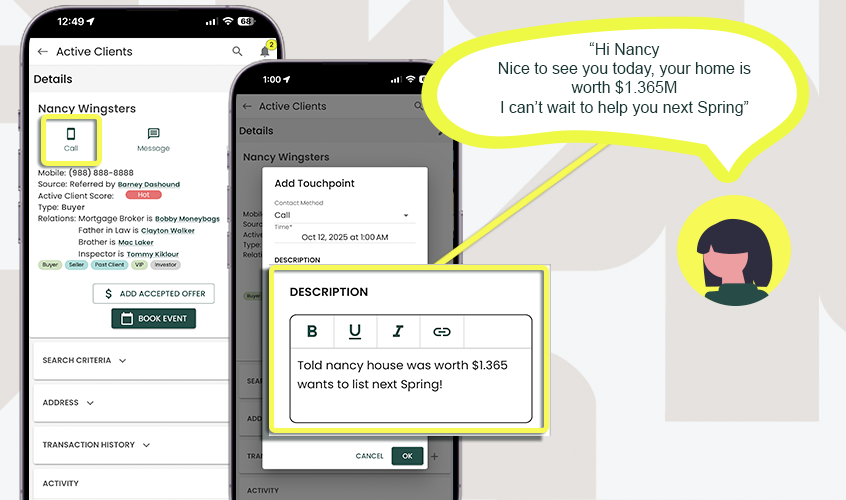
Touchpoints
Touchpoints are individual interactions or communications you have with your clients or prospects, such as phone calls, emails, meetings, showings, or follow-ups. Every touchpoint is time-stamped, allowing for compliance and historical tracking, and lets you log important details about the interaction.
How Touchpoints Help You Stay Organized
Centralized Record-Keeping: All interactions are stored in one place, linked to the relevant client, listing, or transaction.
Chronological History: Time-stamped touchpoints provide a clear timeline of interactions, making it easy to review past communications or continue conversations seamlessly.
Improved Client Follow-Up: Detailed logging ensures you never miss a follow-up or lose track of a conversation.
Compliance and Reporting: Time-stamped records provide a reliable audit trail, helping agents meet legal and regulatory requirements.
In short: Touchpoints let you track every client interaction in a structured, professional, and compliant way.
Tracking Recent Interactions
To easily keep track of your engagement, the Contacts table includes a Last Touchpoint Time column.
- Intelligent Rollup: For client groups, this column seamlessly rolls up touchpoints from group members and parent groups, displaying the date along with the specific group member's first name (e.g., 'Oct 12, 2023 (John)') if the touchpoint occurred with a specific individual.
- Sorting and Filtering: You can sort your contacts by this column to see who you interacted with most recently, or filter contacts by the date of their last touchpoint to quickly identify clients who may need a follow-up.
Add a Touchpoint Manually
- In the sidebar, click on Active Clients or Contacts
- Select the Contact/Client you want to Add a Touchpoint
- Scroll to the bottom (mobile and desktop) and under Activity, Select Touchpoints tab
- Select "Add Touchpoint"
- Complete all the information, including the method of Communication.
🚀 You can even input a Follow Up Task that will appear in your task list, keeping you organized and on-top of future needs
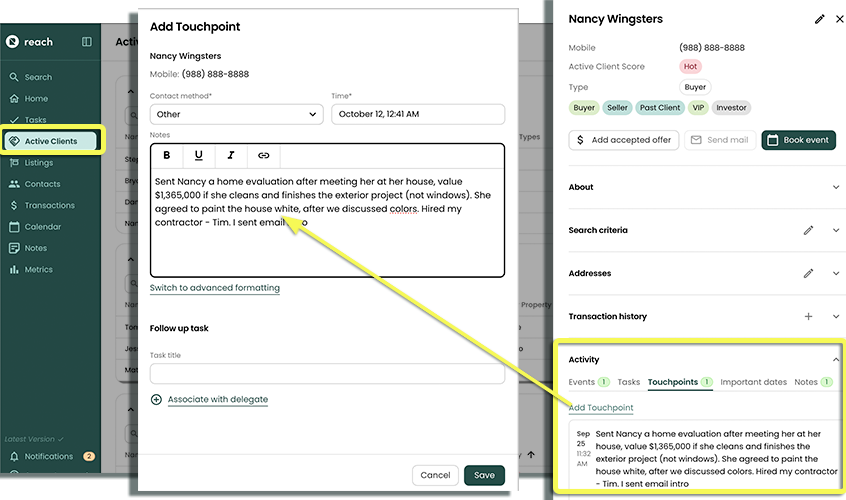
- Your completed Touchpoint is now stored for the life of this Contact or Client. You can always find it here, chronologically.
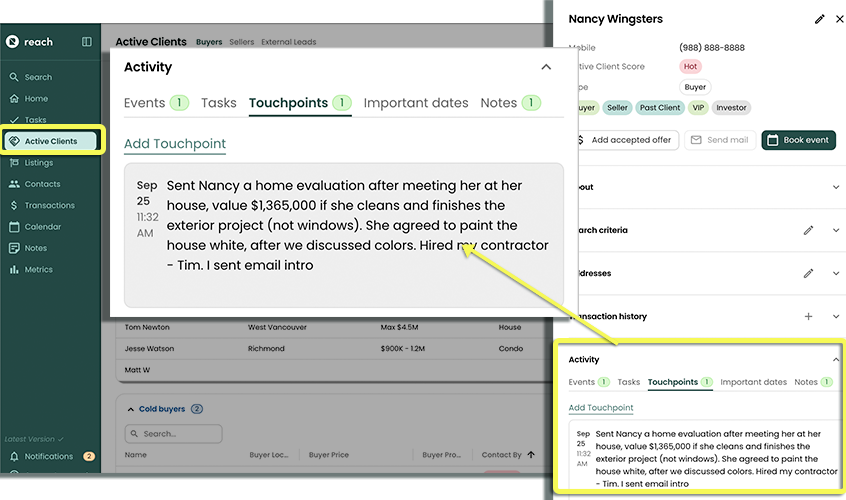
Add a Touchpoint to Multiple Contacts (Mass Action)
Sometimes you need to log the same interaction for several contacts at once. Reach allows you to add a single touchpoint to multiple contacts simultaneously, streamlining your workflow.
- In the sidebar, click on Contacts
- Use the checkboxes to select multiple Contacts or Groups
- Click the 3-dot menu item (...) at the top of the list
- Select Add Touchpoint from the bulk actions menu
- A modal will open. Complete the information, including the Contact Method, Time, and Notes.
- Click Save
Smart Group Handling: If you select both a Group and the individual members of that same Group, Reach will intelligently apply the touchpoint only to the Group level. This prevents duplicate and redundant touchpoint entries in your records.
Add a Touchpoint Automatically
Typically done from your mobile device, any time you action a contact—whether by call, email, or text—from the Reach CRM App, Reach will automatically prompt you with the Add Touchpoint dialog when you return to the app. This makes it quick and easy to log your interactions and capture important details immediately after connecting with your client.